
How to Keep Creative References Connected to the Final Work
Practical habits for organizing creative references, recording decisions and reviewing final work, plus what Enterall offers for each step.
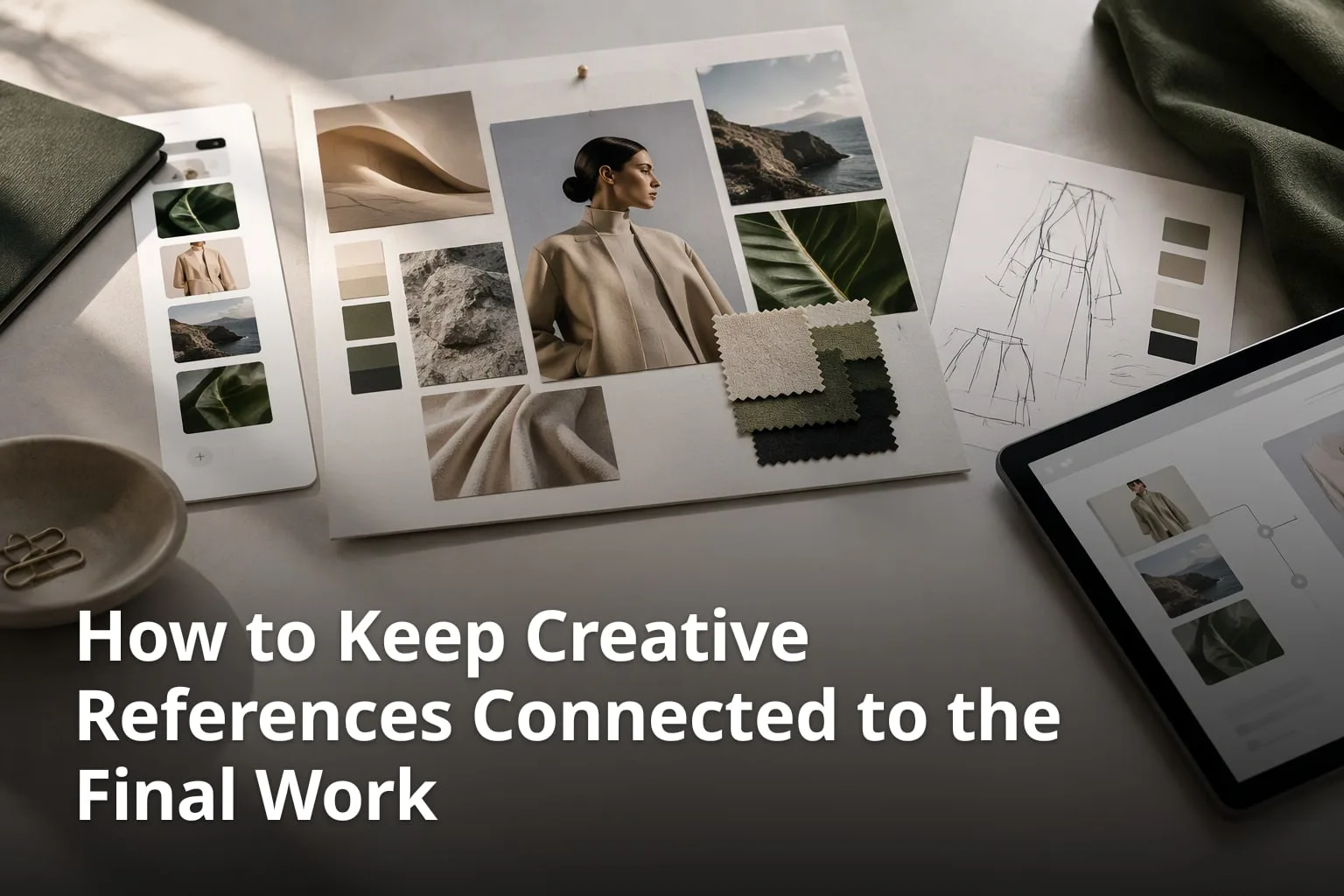
A mood board is easy to start and easy to lose. Images are saved in one place, notes live in a chat, the brief sits in a document, and by the time the final work is delivered nobody can say which reference led to which decision. This guide covers practical habits for keeping creative references connected to the work they inspired, and then shows what Enterall offers to support those habits.
What are the key takeaways?
- Keep the references, the work in progress and the decisions for one project in one place, so nobody has to search for context.
- Give every reference a reason: a short note on what you are taking from it, and what you are not.
- Write down each choice and the reference behind it while the choice is fresh.
- Share with a clear permission level and a short review question, and expect shared content to be copyable.
- Review the final work against the original references before you deliver it, and keep a human in charge of AI results.
Why do creative references get disconnected from the final work?
References get disconnected because they are collected for inspiration but are rarely used as a checklist, and because they are spread across tools that do not know about each other. The reference stays where it was saved, while the project moves into drafts, feedback rounds and deliverables.
The usual pattern is simple. Someone saves images, screenshots and links while exploring an idea. The team then moves to sketches, mockups or layouts, and the originals stop being opened. When a client asks why a color or shape was chosen, the answer depends on someone's memory. Nothing is wrong with the work itself, but the reasoning behind it cannot be reconstructed.
Three habits cause most of the loss. First, saving without a reason: an image in a folder says nothing about what in it matters. Second, splitting material across places: references in one app, notes in another, feedback in email. Third, never closing the loop: the final work is approved on its own merits and never compared with the original direction. The steps below address each one.
How do you organize creative references for a project?
Start with one place per project, group the material by what it will be used for, and attach a short reason to each reference. The aim is not a complete archive but a board that a new colleague could understand in a few minutes.
1. Create one home for the project
Pick one board, folder or workspace for the project and put everything there: references, sketches, notes and the brief. If something has to live elsewhere, such as a contract or a spreadsheet, add a note on the board that says where it is.
2. Group by purpose, not by source
Sorting by where an image came from is tempting, but it rarely helps later. Group by what the image is for: color direction, silhouette, texture, mood, composition, typography. A designer looking for a color direction should find all the color references together.
3. Add a reason to every reference
Write one line next to each image: what you are taking from it. For example, "the drape of the fabric" or "the contrast between the two blues". Add what you are not taking, if it could be misread. Without this line, a reference is decoration.
4. Keep your own work beside the references
Place sketches, drafts and test images next to the references they respond to. Seeing the original and the response side by side makes drift visible early, while it is still cheap to correct.
5. Mark the references that decide the direction
Most boards hold far more than the project needs. Pick the few references that define the direction and mark them clearly, for example in a frame titled "Direction". The rest is background. This keeps reviewers from treating every saved image as a requirement.
6. Retire what you reject
Do not delete rejected ideas straight away. Move them into a clearly named area such as "Not this". They prevent the same idea from being proposed again, and they document what was considered.
What should a reference carry with it?
- A source: where it came from, so that rights and credits can be checked later.
- A reason: what you are taking from it.
- A role: direction, background, or counter-example.
- An owner: who added it and who can answer questions about it.
- A status: in use, parked, or rejected.
You do not need a database for this. A short text note beside the image does the job, as long as everyone on the project writes them the same way.
How do you record why a creative decision was made?
Record each decision in a sentence or two, next to the work it applies to, while it is fresh. The record should say what was chosen, which reference or feedback it came from, and what was set aside.
A decision note does not have to be formal. "Chose the warmer palette: client asked for something less clinical, see the second reference image" is enough. Written next to the image it describes, it answers the later question "why did we do it this way?" without a meeting.
1. Write the choice in plain words
State what was decided, not how you feel about it. "Went with option B" is less useful than "Went with option B: the collar shape matches the direction reference".
2. Name the reference or the feedback behind it
If a decision came from a reference, point to it. If it came from feedback, say who gave it and when. This protects the team when a stakeholder later remembers the discussion differently.
3. Note what was rejected and why
One line on the rejected option saves a repeat of the same discussion. It also shows reviewers that alternatives were considered.
4. Date the note
Projects change direction. A date lets the next person see which notes are current and which belong to an earlier phase.
Tip: if a decision cannot be linked to any reference or piece of feedback, say so in the note. It is better to record "judgment call" than to invent a justification afterwards.
What does Enterall offer for reference-led creative work?
Enterall describes itself on its home page as "The visual workspace for apparel and fashion teams." Its FAQ adds that it is "a visual workspace for fashion and apparel designers, from independent creatives to teams". Its About page calls it "a collaborative visual board for organizing ideas, images, and workflows." Its aim, in its own words, is to keep ideas connected as they move from early reference to finished direction.
On the board, the home page says you can "bring references, sketches, colour palettes and notes together". The FAQ says you can upload your sketches, product photos and reference images to a board as a starting point. The documentation adds that you can collect images, add text and documents, and arrange references on the canvas. That covers the first habit above: one home for the project, with the references and your own work on the same canvas. Enterall's product documents also mention links and supported video as board material, with format and size limits that can apply.
For AI work, the home page says you can turn sketches into rendered concepts, explore colorways, change materials, combine references, build outfits and create packshot-style images, and that you can edit an existing image to develop a specific detail or try another direction. The AI tools run in the browser, and the FAQ says you describe changes in plain language. Enterall's AI starts from the material already on the board, so a result can sit beside the reference it came from.
For working with others, the home page says you can invite collaborators to work together in real time, or enable a share link for your board, and that sharing settings let you choose whether people with the link can view or edit it. It also says you can download images from your board to use in your wider design workflow. Enterall also describes comments in context, and documents, tables, calendars and presentations that connect to board material.
How do the habits in this guide map to Enterall?
- One home for the project: a board that holds references, sketches, color palettes, notes and documents.
- Your own work beside the references: AI results can be placed on the same canvas as the images they started from.
- A written record of decisions: documents connected to the board, and notes next to the images.
- Sharing with a clear permission level: invited collaborators, or a share link set to view or edit.
- A review against the original: the reference and the result sit together on one board for comparison.
This matters for expectations. Enterall gives you a canvas where references, your own work and AI results can sit together. Keeping them connected still depends on how the board is laid out and on the notes the team writes.
How can you keep AI results connected to the references they came from?
Keep every AI result on the board next to the reference or sketch it started from, and note which prompt or change produced it. If a result is later chosen, the board already shows where it came from.
1. Start from a reference on the board
Choose the sketch, product photo or reference you want to develop and keep it on the board. Describe the change in everyday words, as the Enterall FAQ suggests: a different color, a different material, a changed detail.
2. Place the result beside the original
Put each new image beside the one it came from, not in a separate folder. The pair tells the story: this reference, this change, this result.
3. Write down what you asked for
Add a one-line note with the instruction you gave and what you wanted to test. When you compare five variations later, the notes tell you which question each one answered.
4. Compare against the direction frame
Check each result against the references you marked as the direction. Ask whether it keeps what you wanted from the reference and whether it drifts from it.
5. Review the result as you would any draft
Enterall's terms say "AI results may contain errors" and advise you to "review results before relying on them or using them commercially." Treat every image as a draft that a person has to approve.
6. Download only what is chosen
Enterall says you can download images from your board. Download the chosen results for the wider workflow, and leave the exploration on the board as the record of how you got there.
Credits are spent on this AI work. Enterall says how many you use depends on the tool and the output you choose, so it is worth testing on one reference before running many variations.
Can a connected assistant help organize a board?
Yes. Enterall offers an MCP connection that lets ChatGPT, Codex or Claude work with your boards. Its MCP page lists, among other things, finding and reading boards, creating private boards and documents, adding text and images, grouping content, and commenting on shapes.
The MCP page gives example requests such as finding boards about a topic and summarizing the references on one of them, grouping a board's images by theme into labeled frames without removing any, and drafting a creative brief document from a board's references and reviewing it before applying. Those are the kind of tasks that support the habits in this guide: grouping references by purpose and keeping a written record next to them.
1. Connect the assistant
The MCP page says to add a remote connection named Enterall in your assistant's connector settings, use the server URL https://mcp.enterall.co/mcp and sign in with OAuth. You need a free Enterall account.
2. Start with a read-only request
Enterall suggests starting with a request such as finding your boards, to confirm that the tools appear. Select a board before asking for changes.
3. Ask for changes you can check
A request to group images by theme without removing any is easy to check. The MCP page says your client may ask for approval before tools run, and some operations need a separate confirmation.
4. Control the access
The MCP page says the assistant can only access what your account can access, and that you can revoke the connection in Enterall Settings under Connected apps. It adds that removing the connector from your assistant does not revoke the Enterall authorization, so do both if needed.
The MCP page also says that connecting and using board, canvas, document and collaboration tools is free, while image generation and editing use your existing Enterall credits. Your assistant provider may have its own plan or usage limits.
How do you share a reference board with a team or client?
Share the board with a clear permission level and a clear question for reviewers. Enterall lets you invite collaborators, or enable a share link and choose whether people with the link can view or edit.
A board with no instructions invites vague feedback. Tell reviewers what to look at and what you need from them: a choice between two directions, a check of the color palette, a yes or no on the silhouette. Feedback that arrives next to the image it refers to is much easier to act on than a list of remarks in an email.
What should you decide before you share a board?
- Who needs to edit and who only needs to look. Choose view access unless someone has to change the board.
- Which part of the board is ready. Mark exploratory areas so that reviewers do not treat them as proposals.
- What decision you need and by when.
- Whether anything on the board should not leave the team.
- Where the feedback should be written, so it ends up beside the work.
Enterall's terms contain a sentence worth remembering here: content made available to collaborators, public viewers or connected applications may be received or copied by those recipients. Treat a shared board as something others can keep, and do not put confidential material on a board you plan to share by link.
How do you check the final work against the original references?
Before you deliver, put the final work next to the direction references and compare them against the notes you wrote at the start. The check takes a few minutes and catches drift that nobody noticed along the way.
What can you check before delivering?
- Does the final work keep what you said you were taking from each direction reference?
- Where it differs, is there a decision note that explains why?
- Do the colors, proportions and materials match the palette and notes on the board?
- Has every AI-generated image been reviewed by a person and checked against the sketch or sample it came from?
- Are the sources and rights for every reference known, in case the work is published?
Keep the board after delivery. When the next project starts from a similar brief, the notes and the rejected ideas are a head start. Enterall describes version history for boards, and its MCP guide lists reading board history and restoring board versions, so an earlier state of a board can be reviewed if you need to see how a direction changed.
What are the most common mistakes when organizing references?
The most common mistakes are collecting without a purpose, keeping material in too many places, and never going back to the references once the work starts. Each one can be fixed with a small change in routine.
Which mistakes should you avoid?
- Saving everything and curating nothing. A board with hundreds of images and no marked direction gives no guidance.
- Using references as decoration. If no one can say what an image contributes, remove it or write the reason.
- Splitting feedback across email, chat and calls without bringing it back to the board.
- Letting AI variations pile up without notes, so the chosen result has no history.
- Treating a shared board as private. Anyone who can see it may copy it.
- Skipping the final comparison because the deadline is close.
What do Enterall's plans and credits cost?
Enterall's pricing page says credits power all AI work, and lists a Free plan at 0 DKK with 200 credits, given once. Starter costs 150 DKK per month with 1,000 credits a month, and Pro costs 500 DKK per month with 6,000 credits a month. Enterprise is custom.
The page says Starter and Pro renew monthly, unused credits do not roll over, and VAT is not currently charged. For standard images, it gives approximate outputs from a full plan's credits of about 18 on Free, about 90 on Starter and about 545 on Pro, and says actual use varies. Check the live pricing page before you decide, as prices can change.
Is Enterall the right fit for this workflow?
Enterall is a good fit if you work in fashion or apparel, or on creative projects that start with visual references, and you want your references, your own sketches and AI image exploration on one shared board. The simplest way to judge is to try one real project on the Free plan. Enterall says accounts need no credit card and the Free plan includes AI credits.
Enterall does not claim to be the right choice for every job. It is not meant to be a generic task manager or a standalone image generator, and a project-management system built around dependencies and resource allocation, or a very large template library, may serve other needs better. Bring one set of references, apply the habits in this guide, and see whether the board still makes sense to a colleague a week later.
Frequently asked questions
Short answers to common questions about keeping references connected to finished work.
What can I put on an Enterall board?
The public pages mention references, sketches, product photos, color palettes, notes, text and documents. Enterall's product documents also list links and supported video, and note that format and size limits can apply.
Does Enterall link a reference to the images generated from it?
The AI starts from the material already on the board, and the practical way to keep the connection visible is to place each result beside the reference it came from and add a short note with the instruction you used.
Can I work on a board with other people?
Yes. Enterall says you can invite collaborators to work together in real time, or enable a share link and choose whether people with the link can view or edit.
Does Enterall have comments on boards?
Comments attached to the work are part of how Enterall describes collaboration, and its MCP page says a connected assistant can add comments to board shapes.
Are my images used to train AI models?
According to its home page, Enterall does not use your images to train AI models and its AI providers do not train on them by default. It also says you keep your rights to what you upload.
Is Enterall free to try?
Yes. The home page says it is free to start, with no credit card, and that the Free plan includes AI credits that are given once.
How do I keep references connected without special software?
Use one board or folder per project, write one line of reasoning beside each reference, place your work beside the references it answers, and compare the final result with the direction references before delivery.
Create a free account at enterall.co (no credit card needed) and try one real project: references, sketches and notes on one board.
What are the sources?
Every statement about Enterall in this article comes from Enterall's own public pages and documents. General advice on organizing references is working practice, not a claim from a source.
Which pages were used?
- Enterall home page: https://enterall.co/
- Enterall pricing: https://enterall.co/pricing
- Enterall About: https://enterall.co/about
- Enterall documentation: https://enterall.co/docs
- Enterall MCP connection: https://enterall.co/docs/mcp
- Enterall terms of service: https://enterall.co/terms