
Explore Fabric and Finish Variations on Garment Images
Set up a board, request a focused material change, compare variations beside the original and review construction details in Enterall.
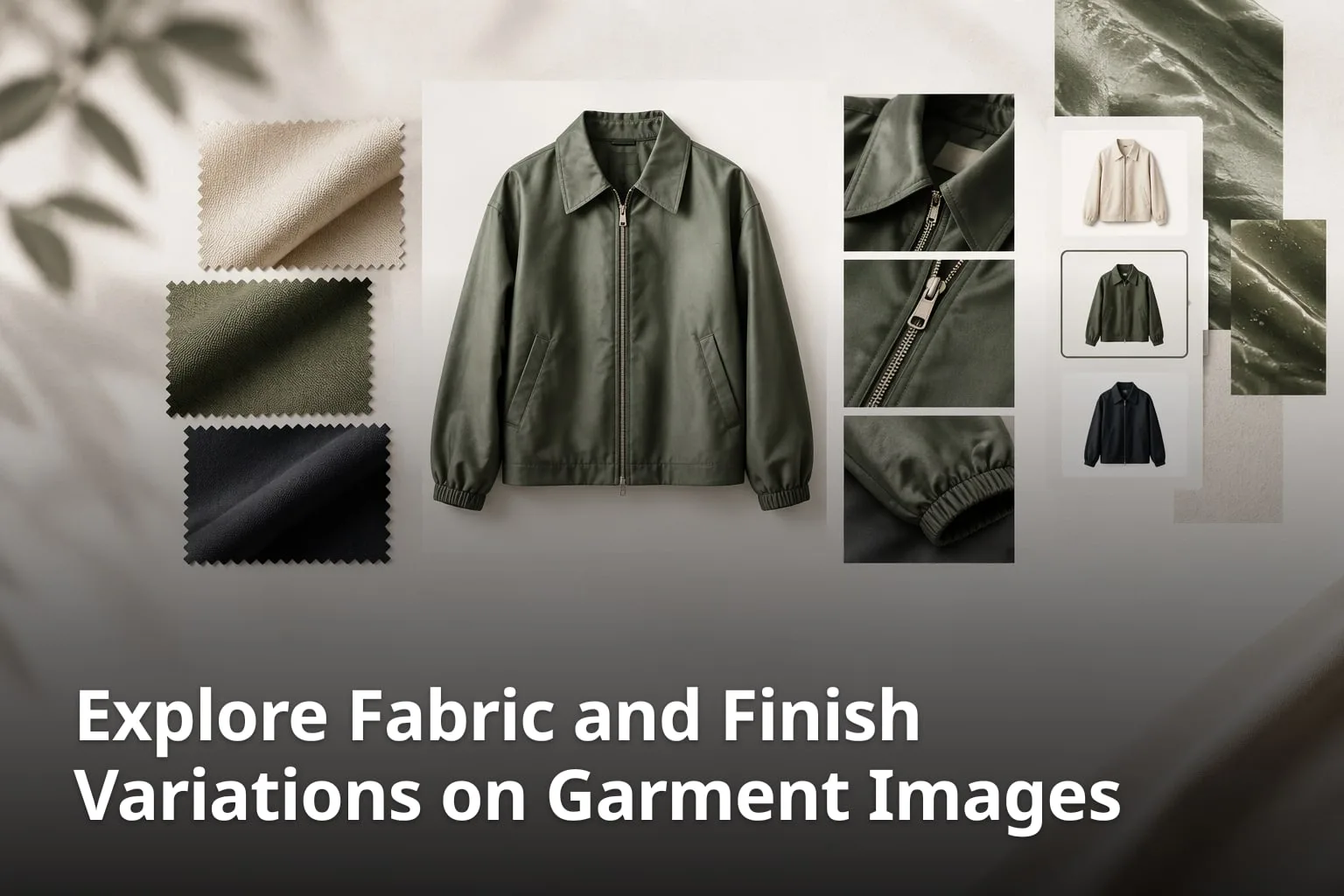
Enterall lets you change the material or finish of a garment image on a board and compare the options beside the original. This guide walks through the steps: set up the board, request a focused change, compare the results, review the details and share the direction.
How do you change the fabric of a garment image in Enterall?
Put the garment image on a board, add material or finish references, then describe the change you want in plain language, such as trying a new color or changing a fabric. Review the result before you use it.
1. Select the garment image
Start from the sketch or product photo of the garment on your board. This is the reference the edit begins from.
2. Add material, texture or finish references
Place swatches, textures or finish images next to the garment so the change has something specific to follow.
3. Request a focused material change
Select the garment image and ask for one change, for example a new fabric or a different finish. Keep each request to one change so you can see what caused the difference.
4. Review construction details and consistency
Check trims, seams and overall construction against the original before you choose a version.
5. Record the preferred direction
Note the chosen material in a brief or a table, so the decision stays with the board.
AI edits can change small details in a garment, such as trims, seams or text. Review each result before you use it.
How do you set up a board for fabric variations?
Create a board for the garment, upload your sketches, product photos and reference images, and keep them next to your color palettes and notes. Enterall describes boards as the place where references, images and notes come together.
Upload formats, sizes and AI limits can apply, so check the current limits in Enterall before a larger batch of images. The documentation covers how to get started with a board.
How do you compare fabric and finish variations?
Keep each variation on the same board, next to the original garment. Seeing the results beside the original shows what the material change did to the look and where the construction shifted.
1. Create variations
Ask for the same garment in a few different materials or finishes, one change per request.
2. Arrange them beside the original
Move and group the images on the board so the original and each variation sit together.
3. Focus on one image at a time
Open an individual image when you want to look closely at a detail, such as a seam or a trim.
4. Pick the direction that moves the idea forward
Keep the variation that fits your intent and leave the others on the board as a record.
What should you check on the result?
Check that the material reads the way you intended and that the construction still matches the garment. Reference images improve the direction of an edit, but they do not guarantee that every detail is preserved.
- Does the new material look like the one in your reference?
- Are the trims and seams still where they were on the original?
- Did any text, label or small detail change?
- Does the variation still match the overall construction direction?
How do you share the variations for feedback?
Invite collaborators to work on the board in real time, or enable a share link and choose whether people with the link can view or edit. Comments can be attached to the relevant material, so feedback stays next to the image it is about.
Earlier board states are kept through version history, so you can review or restore a previous state if a round of changes goes the wrong way.
How do you present the chosen fabric direction?
Turn the selected board material into a presentation. You can add images and text from the board, arrange them in slides, present directly from Enterall and share a view link for review.
Can I use my own sketches and product photos?
Yes. Upload your sketches, product photos and reference images to a board and use them as the starting point for your edits.
Will an edit keep every construction detail exactly?
No. Small details such as trims, seams, text or construction can change. Reference images improve the direction, but you should review each result before using it.
Can I go back to an earlier version?
Yes. Earlier board states are kept through version history, so you can review them and restore a previous state.
Can I download the images I create?
Yes. You can download images from your board to use in your wider design workflow.
Does changing a fabric use credits?
Credits power AI work in Enterall. How many you use depends on the tool and the output you choose.
Create an account, add a garment image to a board and try one material change.
Related reading: How to Go from a Fashion Moodboard to Colorways and Pack Shots in Enterall and How Fashion Teams Connect Creative Workflows.