
How to Use Visual Boards for Project Planning
A practical guide to planning a creative project on a visual board, from collecting references to tables, calendars, presentations and sharing with collaborators, with what Enterall's boards are documented to do.
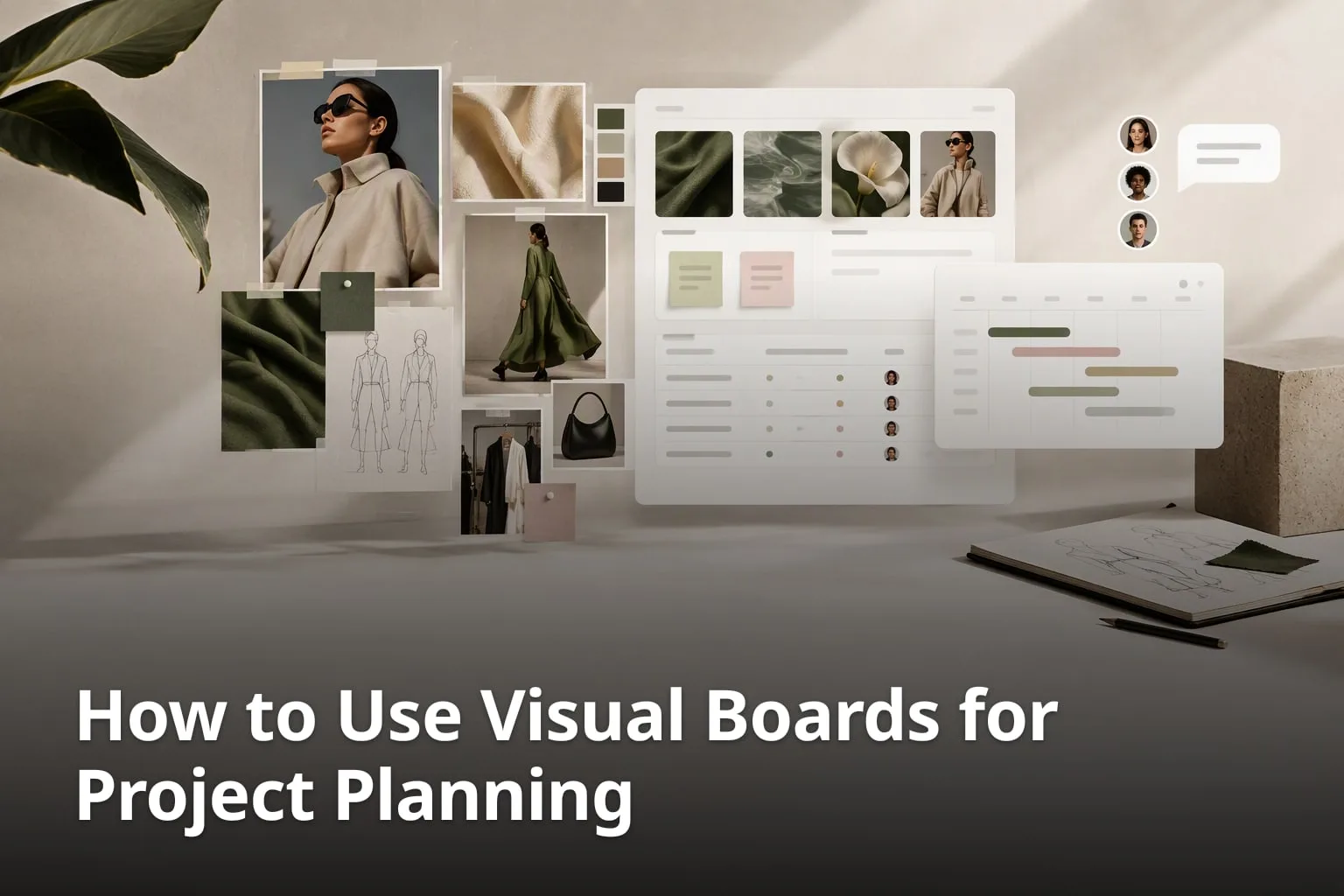
A creative project usually starts as a pile of inspiration: reference photos, rough sketches, colour ideas, links and half-formed notes. Then the practical questions arrive. What is being made, by when, in which version, and who has approved it? If the inspiration lives in one place and the plan lives in another, the reasons behind each decision are easy to lose. A visual board is one way to keep them side by side. This guide explains how to plan a creative project on a visual board, step by step, and describes what Enterall's boards are documented to do, in its public pages and in its own product documents.
What is a visual board, and when does it help with project planning?
A visual board is a canvas where images, text and other material sit together so you can see a whole project at once. It helps with project planning when the visual side of the work, such as references, sketches and colour palettes, has to stay close to the practical side, such as decisions, notes and next steps.
A board works differently from a task list. A list tells you what comes next, but it says little about why a design looks the way it does. A board lets a reference image sit directly beside the note that explains how it was used, and that makes it easier to come back to a project after a few weeks and still understand it. For projects where the look of the result matters, such as a clothing collection, a campaign or a product concept, that context is often the most valuable thing to keep.
A board is not a replacement for every other planning method. It suits the early and middle stages of creative work well, where ideas are still being compared and refined. Projects with strict budgets or long chains of dependencies may still need a spreadsheet or a dedicated project tool alongside the board, and that is a fair way to work. The sections below focus on what a board does well: holding the visual material and the thinking around it in one place.
What are the key points about visual boards?
- A board keeps references, sketches and notes in one view.
- The visual material and the reasoning behind it stay together.
- Sections, labels and a simple naming habit turn a pile of images into a plan.
- Sharing a board lets other people see the same material you are working from.
Key takeaways
- Start with references and sketches, then add structure in small steps.
- Group the board by project stage rather than by file type.
- Write the date, the owner and the decision next to the item they belong to.
- Review the board on a fixed rhythm so it stays current.
What can you put on an Enterall board?
According to enterall.co, you can "Bring references, sketches, colour palettes and notes together on a board, then develop and visualize your ideas with AI image tools." The site also says you can "Upload your sketches, product photos and reference images to a board and use them as the starting point for your work."
Enterall describes itself as "The visual workspace for apparel and fashion teams." Its documentation says a board is where you gather images, text and documents on a canvas, and that you create a board for a project. The same documentation says you can add documents to a board and invite collaborators when you are ready. For planning, that means one board can hold the visual references and the written material that explains them.
The AI image tools sit on the same board. The site describes turning sketches into rendered concepts, exploring colourways, changing materials, combining references, building outfits and creating packshot-style images. You can describe changes in plain language, such as trying a new colour or changing a fabric, and you can edit an existing image to develop a specific detail or try another direction. The rest of this guide treats these tools as one part of the planning process, not as the whole of it.
Beyond what its public pages list, Enterall's own product documents describe a structuring step for a board. They say you can "Turn board material into documents, rich tables, calendars, plans, and presentations." The same documents say that operational limits can apply to uploads, media, AI jobs, concurrency, resolution and sharing, so confirm what your own access includes.
Which planning features does Enterall describe?
- Documents: collaborative documents connected to a board, with AI-assisted drafting and the option to ask questions using relevant board or document context. Enterall lists creative briefs, production notes and shoot plans among the uses.
- Rich tables: typed columns, sorting and filtering, calculations and summaries, and structured rows tied to planning or production work. Listed uses include product line plans, asset lists, shot lists, deliverable trackers and approval matrices.
- Calendar and planning: create and manage calendar events, review work by time period, and keep schedules near related board and document material. Listed uses include campaign calendars, shoot schedules, review milestones and production timelines.
- Presentations: add images, text and supported video from a board, arrange slides using presentation structures or templates, present directly from the product, and share view-oriented presentation links.
- Version history: Enterall lists "Preserve earlier board states through version history" among its board capabilities, and its documents also mention reviewing earlier versions and restoring previous states.
How do you plan a creative project on a visual board?
Plan a creative project on a visual board by gathering references first, grouping them by project stage, writing the key decisions next to the material they relate to, inviting collaborators, and reviewing the board regularly. The steps below follow that order and can be adapted to most creative projects.
1. Create one board per project
Start with a single board for a single project, and give it a name that you will recognise in six months, such as the season and the collection or the campaign and the year. Keeping one project per board avoids the situation where a reference for one project is found sitting among the sketches of another. Enterall's documentation starts the same way: create a board for a project.
2. Collect references and sketches
Add the material that started the project: reference images, photographs of fabrics or products, your own sketches, colour palettes and any links or notes you have. Do not worry about order yet. The aim of this first pass is to get everything into one place so that nothing important stays in a folder, a chat thread or someone's phone. If you already have drawings on paper, a photo of the drawing is enough to get started.
3. Group the board into sections
Once the material is on the board, sort it into sections that match the stages of the project. A simple set is Ideas, Chosen direction, In progress and Final. Another is one section per product or per deliverable. The right grouping is the one that lets a new person open the board and understand where the project stands in a minute or two. Sort by what the work is for rather than by what kind of file it is.
4. Write decisions and dates next to the material
For each item that matters, add a short text note that says what was decided, who is responsible and when it is due. Keep the note in the same place as the item, so the reasoning is never further than a glance away. Because a board holds text as well as images, a note such as "Fabric: waiting for sample, decide by Friday" can live right beside the swatch it refers to.
5. Invite the people who need to see it
When the board is in good enough shape to show, bring in the people who need it. Enterall's site says you can "Invite collaborators to work together in real time, or enable a share link for your board." Decide in advance who should be able to change the board and who should only look at it, and set the access to match.
6. Develop the strongest ideas further
Pick the directions that are worth taking forward and work on them in more detail. This is where AI image tools can help: turn a sketch into a rendered concept, try another colour or change a material, then keep the versions you want to compare on the board next to the original.
7. Review the board and close each stage
Set a regular time to go through the board with the people involved. Move finished items to the final section, remove what was rejected or move it to an archive section, and update the notes. A board that is reviewed on a rhythm stays useful. A board that is only ever added to turns into a second pile. Enterall's product documents list review milestones among the uses of its calendar.
How do you keep dates, costs and owners next to the visuals?
Keep dates, costs and owners next to the visuals by writing them in short text notes placed beside the item they belong to, using the same format every time. A consistent note format makes the board scannable, and it lets you find every open decision by looking for the same words.
A board that holds images, text and documents can carry planning information without any special setup. The trick is to agree on a small note format and use it everywhere. For example, each item that needs a decision can carry one line with four parts: what it is, who owns it, the due date, and its status. A note could read "Sleeve detail: Sara: due Thursday: waiting for feedback". The names and dates in this example are made up, and the format is only a suggestion.
Enterall's product documents describe more structured options for the same information. For dates, they describe a calendar where you can create and manage calendar events, review work by time period and keep schedules near related board and document material, with planning information filtered by people where supported. For the four-part note above, a rich table with typed columns, sorting and filtering is one way to hold the same parts in rows, and the documents list deliverable trackers and approval matrices among its uses.
Cost works the same way. When you compare two materials or two suppliers, put the price you were quoted in a note beside each swatch or photo, together with the date of the quote. Prices change, so the date matters more than it seems. If the cost estimate becomes more detailed than a few lines, that is a good moment to move it into a table or a document on the board, or to keep the full calculation in a spreadsheet and link to it from a note. Enterall's product documents describe rich tables with calculations and summaries, and documents connected to a board.
What should a good planning note include?
- What the item is, in a few words.
- Who owns the next step.
- The date the step is due.
- The current status, such as waiting, approved or needs a change.
- Where the supporting document or quote lives, if there is one.
How should you organise the sections of a board?
Organise the sections of a board by the stage of the work or by the deliverable, and keep the number small enough that you can see all of them without scrolling. Two or three sections are easier to maintain than a dozen, and you can always split a section later.
There is no single correct layout, but a few patterns work well in practice. A board for a clothing collection might have one section for the mood and references, one section per garment, and one section for finished images. A board for a campaign might follow the order of the work: concept, drafts, feedback and final. A board for a client project might have a section called Awaiting feedback so the client can see at once what needs their attention.
Whatever pattern you choose, label each section clearly and keep the labels in the same wording from project to project. When every board is built the same way, a new colleague can learn the layout once and read all of them. Resist the urge to leave an Other section: if an item does not belong anywhere, it probably does not belong on the board yet.
Which section layouts are common?
- Stage-based: Ideas, Chosen direction, In progress, Final.
- Deliverable-based: one section for each product, page or asset.
- Audience-based: one section for the team and one for the client.
- Time-based: one section for each week or each season.
How can a team collaborate on a visual board?
A team can collaborate on a visual board by inviting collaborators to work on it together or by sharing a link, with the access level matching what each person needs to do. Enterall's site says you can invite collaborators to work together in real time, or enable a share link for your board.
Sharing settings are where collaboration is controlled. Enterall says these settings let you choose whether people with the link can view or edit the board. For most projects the sensible default is view access for anyone who only needs to see the work, and edit access for the few people who are actively building the board. Giving edit access to everyone makes it easy to lose track of who changed what.
Enterall's product documents describe more collaboration features than sharing settings alone: comments attached to relevant material, mentions and notifications, read, write and administrative access levels, real-time presence and collaborative editing, and external review flows. They also caution that account-free participation should not be assumed for every sharing mode, so check how a particular link behaves before you send it to a client.
Agree some ground rules before inviting people in. Decide where feedback goes, for example in a note next to the item or in a separate section called Feedback, or, in Enterall, as a comment attached to the relevant material. Decide who has the final say on each stage. And decide when a section is locked, meaning that it is finished and should not be changed without telling the others. These agreements take a few minutes and prevent most of the confusion that shared workspaces create.
Before you share a board, open it as a first-time visitor would. If you cannot tell what you are looking at in a minute, add a short note at the top that explains the project and what kind of feedback you want.
How do you turn a planned board into a presentation?
Pick the material that carries the decision, put it in a sequence, and share it for review. According to Enterall's product documents, you can turn selected board material into a shareable sequence for review or delivery: add images, text and supported video from a board, arrange slides using presentation structures or templates, present directly from the product, and share view-oriented presentation links.
Enterall's documents list creative-direction presentations, client reviews, product and collection presentations, campaign concepts and research summaries among the uses. They also describe a moodboard-to-client-direction path: collect references, arrange themes and visual relationships, generate or edit selected material, annotate and compare directions, turn the strongest direction into a presentation, and share it for comments and review.
How can AI image tools fit into project planning?
AI image tools fit into project planning as a way to explore and compare directions quickly, after the references and the brief are on the board. They work best when they are used to test ideas, not to settle decisions that depend on physical materials.
Enterall's site lists the kinds of work its image tools are meant for: bringing a sketch to life, changing colour and material, refining the length and details, creating a tech pack, seeing a design on a model and creating the packshot. In planning terms, each one produces something you can place on the board next to the original reference and compare. A sketch beside its rendered concept, or the same garment in two colourways side by side, shows the difference more clearly than a description does.
There are two habits worth building. First, keep the original reference or sketch on the board next to every generated version, so you can always check whether an idea stayed true to the starting point. Second, treat generated images as a way to discuss colour and material, not as a final standard. A screen shows colour differently from a printed or dyed sample, so confirm the final choice against the physical material before you commit to production.
Credits are how Enterall measures use of the AI tools. The pricing page says that free credits are included once, that Starter and Pro provide a new allocation each billing month, and that credit use depends on the tool and the output you choose. Check the pricing page for the current plans before planning how much generating a project will involve.
How can you connect an AI assistant to a board?
Enterall has a documented connection for AI assistants. Its documentation describes a setup for connecting Enterall to ChatGPT, Codex or Claude, and what an assistant can do depends on the permissions you grant and your access to each board.
According to the MCP documentation, a connected client can create private boards, rename boards, and add, move, resize, group and delete shapes on the canvas. It can find and read board content, including history, create documents, add comments to board shapes, restore board versions, list collaborators, and generate or edit images on the canvas, which uses Enterall credits. The documentation adds that your client may ask for approval before it runs a tool.
For planning, the most practical use is to hand repetitive housekeeping to an assistant while you keep the decisions. Because permissions apply and approval can be requested, you stay in control of what is changed. Read the documentation page for the exact setup steps before you connect anything.
How do you keep a visual board from getting cluttered?
Keep a visual board from getting cluttered by deciding what belongs on it, removing what is rejected, and reviewing it on a fixed rhythm. A board works as a planning tool only while a person can read it quickly.
Clutter usually arrives in the same ways. Duplicate images pile up because nobody is sure which version is current. Old directions stay on the board because deleting them feels risky. Notes lose their meaning because nobody dates them. Each of these has a simple answer. Keep one current version and archive the rest in a clearly labelled section. Move rejected directions to an Archive section at the edge of the board instead of deleting them straight away. Put a date on every note that records a decision.
On earlier versions, Enterall's product documents say you can preserve earlier board states through version history, review earlier versions and restore previous states. That is one more reason to tidy a board with confidence, although it is worth testing how it works on your own account before you rely on it.
It also helps to set a limit on what each section can hold. If the Chosen direction section has fifteen images, it is no longer a choice. Ask what the three strongest items are and keep those in front. A short review at the end of each week, even ten minutes, is often enough to keep a board tidy.
Avoid overcrowding the board with unrelated material. If an image does not support a decision or a deliverable, leave it off or move it to an archive section.
What does a worked example look like?
A worked example shows how the steps fit together: a small label planning an autumn collection might keep one board for the season, with a references section, one section per garment, and a section for final images. The names, items and dates below are invented for illustration and are not taken from any real customer.
In the references section, the designer adds photographs of fabrics, a colour palette and a few sketches. Each garment section holds the sketch, one or two rendered concepts, and a text note in the agreed format, such as "Coat: fabric swatch chosen: quote saved in the supplier document: due before the sample round". When a colleague is invited to the board, they open the garment sections and add feedback notes directly beside the concept they are commenting on.
As the season moves on, items shift from one section to the next. The rejected concepts go to an Archive section, the approved concept moves to the final section, and the note on each item is updated with the date of the decision. At the end of the season the board is a readable record of what was considered, what was chosen and why. That record is useful when planning the next collection, because the reasoning is still attached to the pictures.
How much does it cost to start using Enterall boards?
Enterall's site says it is free to start, with no credit card needed. The pricing page describes Free, Starter, Pro and Enterprise plans, and notes that Starter and Pro renew monthly and that unused credits do not roll over.
Because the plans are built on credits for the AI tools, the cost of a project depends mainly on how much image generating you do. Prices and credit amounts can change, so take them from the pricing page at enterall.co/pricing when you plan, and not from a guide such as this one.
FAQ
What is the main purpose of a visual board in project planning?
A visual board keeps images, notes and documents together so that the creative material and the planning information for a project can be seen in one place. It is most useful in the early and middle stages of creative work, when ideas are still being compared and refined.
How many sections should a board have?
There is no fixed number. Two to four sections matching the stages of the work, such as ideas, chosen direction, in progress and final, are usually easier to maintain than many small ones. A section can be split later if it grows too large.
Can a board hold deadlines and costs?
A board that holds text can carry them in short notes placed beside the item they refer to, if the team uses the same note format throughout. Detailed budgets are often easier to keep in a document, a table or a spreadsheet that the notes point to. Enterall's product documents describe rich tables with typed columns, sorting and filtering, and calculations and summaries, plus a calendar for dates.
How can a board be shared with people outside the team?
According to Enterall's site, a board can be shared by inviting collaborators or by enabling a share link, and sharing settings let you choose whether people with the link can view or edit it. Giving view-only access to people who only need to look is a safe default.
Can a board be turned into a presentation?
According to Enterall's product documents, selected board material can be arranged into slides, presented from the product and shared through view-oriented presentation links. Check the current sharing behaviour on your own account before you promise a client a particular format.
Are AI-generated images reliable for choosing final colours?
No. Generated images are useful for exploring and discussing colour and material directions, but a screen does not reproduce colour in the same way as a dyed or printed sample. Confirm the final choice against a physical sample.
Does Enterall train AI models on uploaded images?
According to Enterall's site, it does not use users' images to train AI models, and its AI providers do not train on them by default. The site also says users retain their rights to the images they upload.
Create a free account at enterall.co to try a board with your own references and sketches. It is free to start and no credit card is needed.
What are the sources?
Which pages does this guide draw on?
- Enterall, home page and FAQ, https://enterall.co/
- Enterall, pricing, https://enterall.co/pricing
- Enterall, documentation, https://enterall.co/docs
- Enterall, MCP connection guide, https://enterall.co/docs/mcp
- Enterall, product catalog and brand guide, documents provided by Enterall (exported 28 October 2026)