
AI Image Workflow for Creative Teams
A step-by-step AI image workflow for fashion and creative teams: gather references on a board, generate variations, review together and finish the images, using Enterall's publicly documented features.
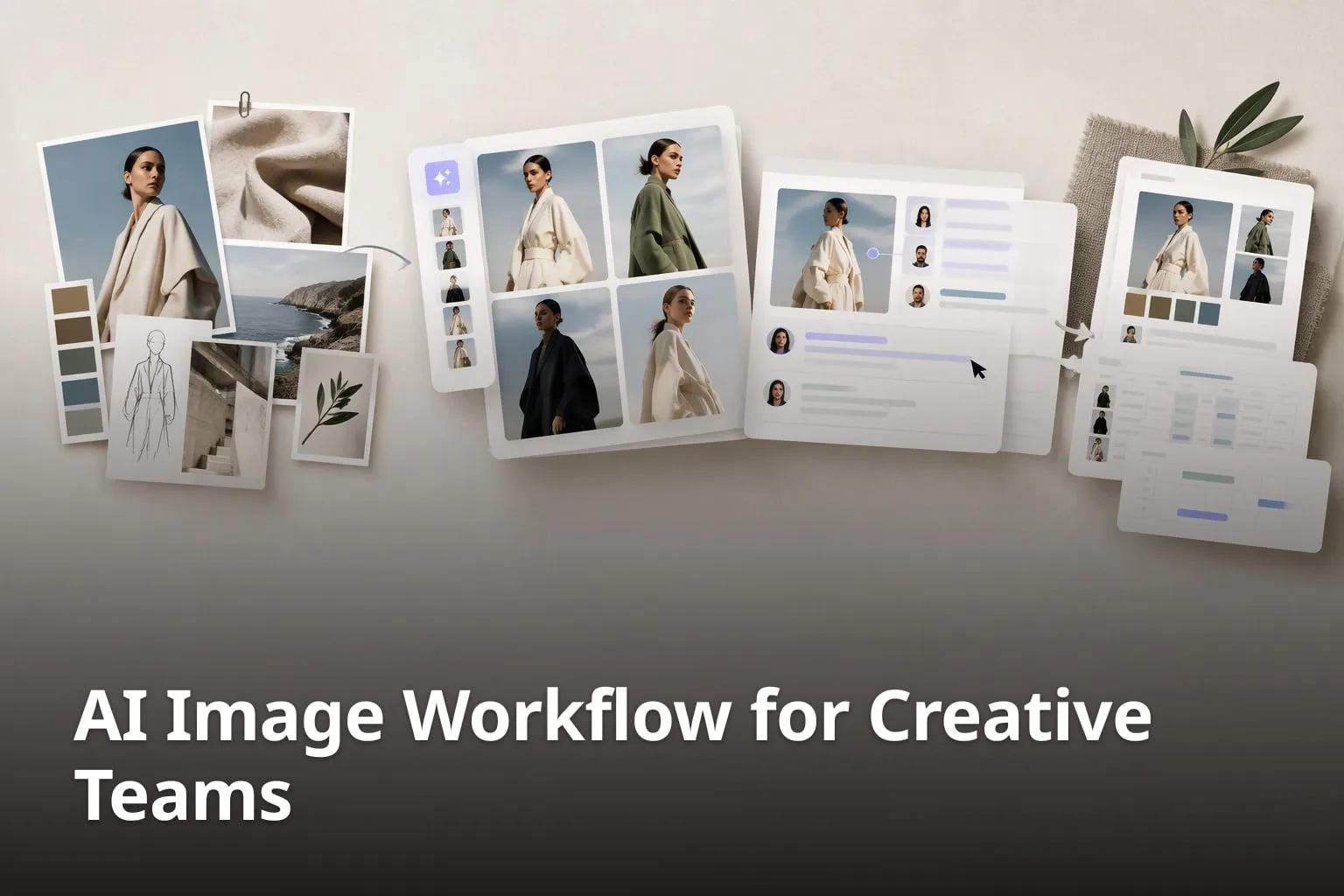
An AI image workflow works best when it starts from something your team already trusts: sketches, product photos, color palettes and notes. This guide walks through a practical way to go from references to variations, review and final images, and shows how Enterall, a visual workspace for apparel and fashion teams, fits into each stage.
What is an AI image workflow for creative teams?
An AI image workflow is a repeatable path from a set of references to finished images, with AI used to generate and edit variations along the way. The value is in the order of work: the references come first, the AI output is judged against them, and the team keeps both together so nobody has to guess where an image came from.
What are the key components of an AI image workflow?
- Visual references that set the direction: sketches, product photos, color palettes and notes.
- A short written direction: style, level of polish and what the images are for.
- AI-generated variations based on the references, produced in small, comparable batches.
- A review step where the team compares the variations against the references and picks one.
- A final pass to refine details and export the images for the next deliverable.
Most problems in AI image work come from skipping the second item. When the team has not written down what it wants, every variation looks plausible and nothing can be rejected for a clear reason. A two or three sentence direction, kept next to the references, makes the later review much faster.
Who is Enterall for, and how does it handle references?
Enterall describes itself as "The visual workspace for apparel and fashion teams." Its pages are aimed at fashion and apparel designers, from independent creatives to teams, and the core path it describes runs from a sketch to a tech pack. That makes it a fit for this article's workflow when the images you are making are garments, colorways and product pictures.
On Enterall you bring references, sketches, color palettes and notes together on a board. The home page says you can "Upload your sketches, product photos and reference images to a board" and use them as the starting point. The documentation adds that you can "Collect images, add text and documents, and arrange references on the canvas." Enterall also says it runs in the browser and that you describe changes in plain language, for example a new color or fabric, so no special software or AI experience is needed.
What can you put on an Enterall board?
- Sketches you have drawn yourself.
- Product photos and reference images.
- Color palettes.
- Notes and text.
- Documents, arranged on the canvas next to the images.
A board per project keeps the starting material in one place. A useful habit is to put the written direction from the previous section on the board as a note, so anyone who opens the board sees the intent before they see the first generated image.
For a colorway review, choose a garment reference, write down the target palette, and compare each result beside the original. Keep a note explaining the selected direction. Use these steps as a manual review checklist.
How do teams move from references to AI-generated variations?
Teams collect their references on a board, agree on the direction in writing, and then generate variations from those references in small batches. Keeping each batch small makes it easy to see what a change in the instruction actually did.
What steps are involved in going from references to variations?
1. Add references to your board.
Create a board for the project and add your sketches, product photos and reference images. Put the most important reference where everyone sees it first, and add color palettes and notes for anything the images alone do not say.
2. Write down the creative direction.
Agree on the style, the level of polish and what the images are for, such as a lookbook, a line sheet or an internal review. Add this as a note on the board. A written direction is what lets the team say why a variation is wrong, not only that it feels off.
3. Generate a first set of variations.
Start from a reference or a sketch and describe the result in plain language. Enterall's pages say the tools can turn sketches into rendered concepts, explore colorways and change materials. Change one thing at a time, for example only the color, so the differences between variations are easy to read.
4. Compare the variations with the references.
Put the generated images next to the references and check each one against the written direction. Look at proportions, trims, edges and color before you look at mood. Drop what does not match instead of trying to rescue it.
5. Iterate on the best candidates.
Take the one or two strongest images and edit them to develop a detail or try another direction. Enterall lists editing an existing image among the things its AI tools can do. Repeat until the image matches the direction, then stop; more variations rarely help once the direction is clear.
This loop works with any tool, but it works best when references, direction and results are all on the same board. The team then reviews from the same material instead of from files scattered across chats and folders.
How can a fashion team use Enterall's AI tools from sketch to packshot?
Enterall's home page lays out six steps for apparel work: bring a sketch to life, change color and material, refine the length and details, create a tech pack, see it on a model, and create the packshot. The order below mirrors the order the home page gives.
What does each step look like in practice?
1. Bring a sketch to life.
Upload your sketch to a board and describe the garment you have in mind. This is the step where a drawing becomes a rendered concept, which the home page lists as one of the things the tools do.
2. Change color and material.
Try colorways and different materials on the same concept. Compare the options against your color palette and note on the board and keep the ones that fit the season's direction.
3. Refine the length and details.
Adjust proportions and finer design details. Enterall says you can edit an existing image to develop a detail or try another direction, so use this step to fix specifics rather than regenerating the whole garment.
4. Create a tech pack.
Creating a tech pack is the fourth step in the sequence on the home page. Check what it needs to contain against your own manufacturer's requirements.
5. See it on a model.
The home page lists seeing the garment on a model as a step of its own. Use it to judge the styling and overall look of the garment before you commit to the final image.
6. Create the packshot.
Finish with a packshot-style image of the product. Enterall describes building outfits and creating packshot-style images among the things its tools can do. Download the images you need from the board for your catalog or site.
Tip: Keep your original sketch and reference images on the board even after you have a good render. They are the yardstick for every later comparison.
How can teams review AI-generated images together?
Review works best when the people judging the images see the same board and the same written direction. Enterall lets you invite collaborators to work together in real time, or enable a share link for a board where, in the company's words, "Sharing settings let you choose whether people with the link can view or edit it."
How do you run a review round?
1. Decide who needs to edit and who only needs to see.
Invite collaborators who will work on the board, and use a share link set to view for people who only need to look. Setting the permission before you share avoids accidental changes to your references.
2. Share the board with the direction visible.
Make sure the written direction and the key references are on the board when reviewers open it, so they judge the images against the intent.
3. Ask for specific feedback.
Ask reviewers to name what to change: the length, the color, the neckline, the fabric. Collect the answers in whichever channel your team already uses and turn them into the next round of instructions. Enterall's public MCP guide lists adding comments to board shapes, so a connected assistant with the necessary permissions can place feedback beside the relevant material.
4. Pick a direction and record why.
When the team chooses an image, add a short note to the board that says why it won. The note gives future reviewers a record of the decision and can help avoid repeat discussions.
5. Check the final image against the references.
Before approving, put the final image next to the original sketch and references. Confirm that proportions, trims and colors still match the direction.
Reviewers do not need to know how the images were made. A good review round asks only whether the image meets the direction, and the board gives them what they need to answer.
Before sending a review link, check its current sharing settings and open it as a viewer to confirm what your reviewers can see. Keep the chosen direction and the reasons for it together on the board.
How do you keep creative context attached to the results?
You keep creative context by working from one board per project, so the references, the direction, the generated images and the final choice sit side by side. Enterall's board is built for this: it brings references, sketches, color palettes and notes together, and you can start AI work from a reference or a sketch on the same board.
What habits help keep the context intact?
- Keep one board per project or collection rather than one board for everything.
- Leave the original references on the board after the first render.
- Write the direction as a note before generating anything.
- Record the instruction you used next to images you plan to reuse.
- Note why you chose the final image, in one sentence.
- Download the final images and keep the board as the record of how you got there.
None of these habits depends on a particular feature. They are cheap, and they are what makes it possible to return to a project months later and still understand it.
Enterall's public MCP guide lists reading board history and restoring board versions. Keep your own notes linking each chosen result to its references and instructions. Review generated images for visual and factual accuracy before using them: a plausible image is not proof that product details match your source material.
Warning: Moving a project between tools halfway through is how references and instructions get separated from the images they produced. Decide where the project lives before you generate the first image.
What do Enterall's credits and plans cost?
Enterall's AI work runs on credits. Its pricing page lists a Free plan at 0 DKK with 200 credits once, Starter at 150 DKK per month with 1,000 credits per month, and Pro at 500 DKK per month with 6,000 credits per month. An Enterprise plan has custom pricing. Prices can change, so check the pricing page before you decide.
The pricing page also gives approximate outputs when a plan's full credit allocation is used for standard images: about 18 standard images on Free, about 90 on Starter and about 545 on Pro. It notes that actual use varies and that unused credits do not roll over. Enterall's home page says the free credits are included once, while Starter and Pro provide a new allocation each billing month. A free account needs no credit card, and you confirm your email to get started.
What does Enterall say about your uploaded images?
Enterall states that you keep your rights to the images you upload and that it does not claim ownership of generated images. The site also says that uploaded images are not used to train AI models and that its AI providers do not train on them by default. If images are client property, read these terms on the site yourself before you upload.
Can an AI assistant work with your Enterall boards?
Yes, through MCP. Enterall's MCP guide says it "lets a compatible AI assistant use Enterall's tools with your permission." The guide lists tasks such as finding boards, reading and organizing content, working on documents and generating images on the canvas. It also says that "Connecting does not give the assistant more access than your Enterall account has." The tools available depend on the permissions you grant and your access to each board.
How should a team choose a first test project?
Choose a small project with clear references and a deadline you control, so you can judge the workflow without risk to a real launch. A single garment or a small capsule is enough to see whether starting from references makes your review rounds shorter.
What should a good pilot include?
- One real sketch or product photo as the starting reference.
- A written direction of two or three sentences.
- Two or three colorways or material options to compare.
- One review round with a collaborator.
- A final image that you export and use.
After the pilot, ask what took the most time. If it was finding references or earlier versions, the board helped. If it was writing instructions, spend a little more time on the written direction next time.
What types of references can teams use in Enterall?
According to its pages, you can upload sketches, product photos and reference images to a board. Color palettes and notes can sit on the same board, and the documentation also mentions adding text and documents.
Can Enterall be used for fashion work?
Yes. Enterall describes itself as a visual workspace for apparel and fashion teams. Its home page walks through bringing a sketch to life, changing color and material, refining length and details, creating a tech pack, seeing it on a model and creating the packshot.
How does collaboration work in Enterall?
You can invite collaborators to work together in real time, or enable a share link for a board and choose whether people with the link can view or edit it. Its public MCP guide also lists collaborator management and comments on board shapes, subject to the permissions granted to the assistant and access to the board.
Is there a free way to try Enterall?
Yes. Enterall says it is free to start with no credit card. The Free plan includes 200 credits once, and you confirm your email to begin.
Does Enterall support editing images that were generated with AI?
According to Enterall, you can edit an existing image to develop a detail or try another direction. It lists colorways, material changes, outfits and packshot-style images among the things its AI tools create.
Who owns the images made in Enterall?
According to Enterall, you keep your rights to the images you upload and it does not claim ownership of generated images. It also says uploaded images are not used to train AI models.
Want to try this workflow? Create a free Enterall account at enterall.co (no credit card), add one sketch and a few references to a board, and run a small pilot.
What are the sources?
Which sources support these claims?
- Enterall home page (checked 30 October 2026)
- Enterall pricing (checked 30 October 2026)
- Enterall documentation (checked 30 October 2026)
- Enterall MCP guide (checked 30 October 2026)