
How to Set Up a Visual Board for Creative Projects
A practical guide to setting up a visual board for creative projects: references, organization, AI edits, feedback and the step to a creative brief.
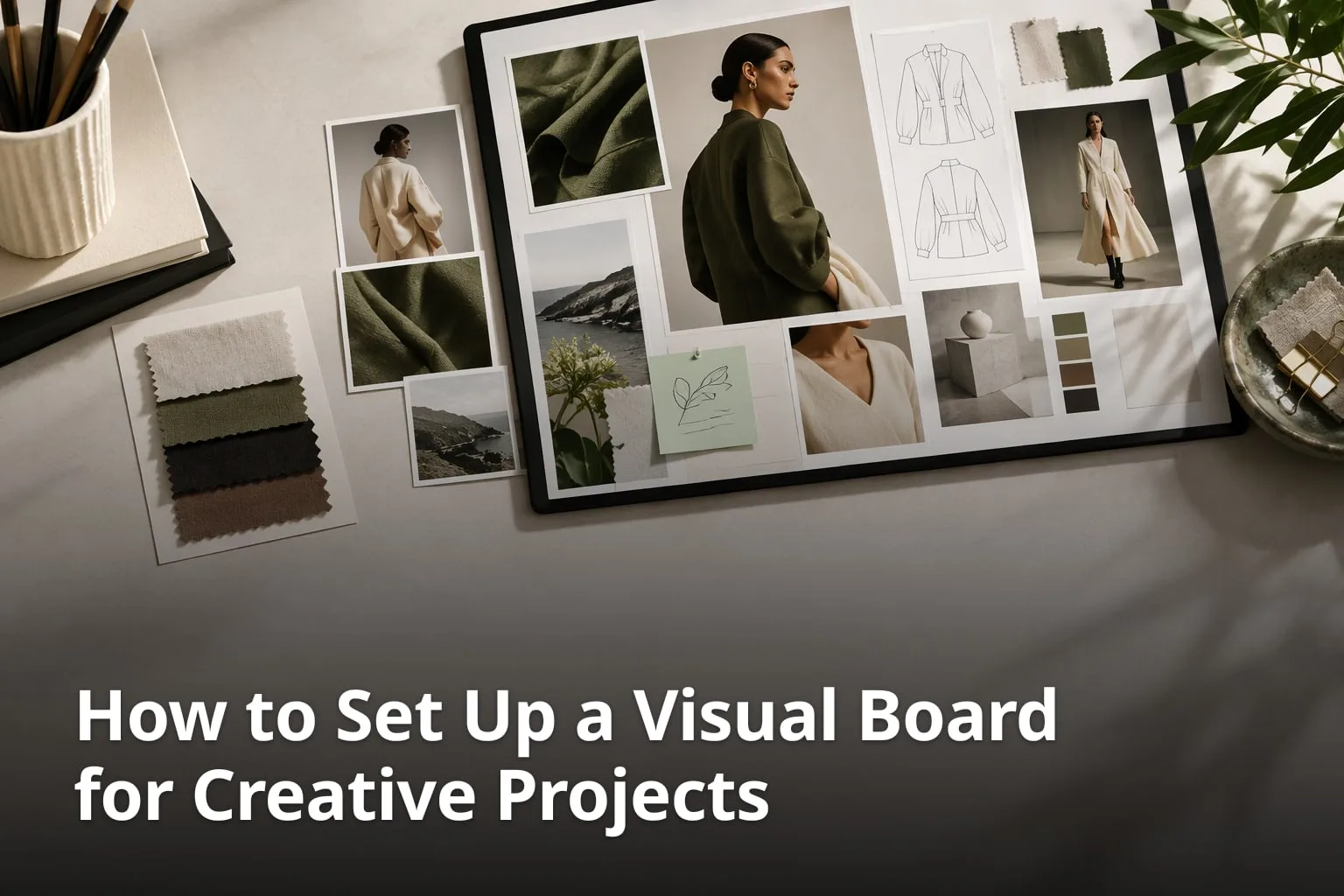
A visual board is a shared working surface where a creative project starts: references, sketches, colour palettes and notes sit side by side so a team can see the direction before anyone commits to it. This guide walks through setting one up, from the first reference to a brief you can hand to a collaborator, with examples from fashion and campaign work and a note on where AI tools fit in.
What is a visual board and why is it useful?
A visual board is a workspace where you collect images, text and links for a project and arrange them so the relationships between them are visible. It is useful because the material that shapes a creative direction is rarely in one place: it ends up in folders, chat threads and slide decks, and the reasoning behind a choice gets separated from the choice itself.
What can a board hold?
- Images, such as reference photos, product photos and sketches.
- Colour palettes and swatches.
- Text notes that explain why a reference matters.
- Documents and links that sit next to the visual material.
- AI-edited versions of your images, kept beside the originals they came from.
Think of the board as the place where the project is visible at a glance. A fashion designer starting a new collection might place fabric references, colour palettes and early sketches on one board. A campaign team might collect brand references, photography they like and links to websites that capture the mood. In both cases the goal is the same: get the scattered inspiration into one place so that people can compare it and talk about it.
Enterall is built around this idea. Its site describes bringing "references, sketches, colour palettes and notes together on a board", with AI image tools and collaborators in the same workspace. The steps below are general enough to use on any board, and they point out where Enterall features fit.
How do you start setting up a visual board?
Start by naming the project and its goal, then create a board for it and add the first references you already have. You do not need a finished concept: a handful of images, a link or two and a sentence about what you are trying to make is enough to begin.
1. Create a board for the project
Sign in and create a board for one project. Give it a name that says what the project is, such as "Spring Campaign" or "Product Launch Concepts". One board per project keeps the references, notes and feedback from different projects from mixing.
2. Write the goal in one or two sentences
Add a short text note at the top of the board that states what you are making and for whom. A sentence such as "A calm, natural-fibre capsule for early spring" is more useful than a long statement, because everything you add next can be tested against it.
3. Add the references you already have
Upload images, sketches and product photos, and add links to pages you want to remember. Do not filter too early. At this point, the aim is to get the material into one place; you can remove what does not fit later.
4. Add a colour palette if you have one
If the project has a colour direction, place the palette on the board next to the references that inspired it. Colour decisions are easier to discuss when the swatches sit beside the images they came from.
5. Invite one person early
Ask a colleague or client to look at the first version. Enterall lets you invite collaborators to work together in real time, or share a link. Early feedback on a rough board costs less than feedback on a polished one.
Tip: Keep the first version small. Ten references you can explain are more useful than a hundred you cannot.
What are the key points for a first board?
- Create one board per project and name it after the goal.
- Write the goal as a short note at the top.
- Add what you already have before looking for more.
- Share the first version early.
What should you include on your visual board?
Include the material that helps people understand the direction: reference images, sketches, colour palettes, short notes and links. Add each item because it answers a question about the project, not simply because it is attractive.
1. Visual references
Gather images that show the mood, materials, shapes or composition you are aiming for. They can come from previous projects, photography, websites or your own captures. Mix close details, such as a texture or a stitch, with wider shots that show the overall feeling.
2. Sketches and early drafts
Upload rough sketches or drafts next to the references. Seeing an early idea beside its inspiration shows how far the idea has travelled and what still needs work.
3. Notes that give context
Add short notes that say why an item is on the board: what you like about it, or what you want to avoid. A note such as "the collar shape, not the colour" saves a conversation later.
4. Links to outside material
Paste links to websites, articles or files you want to keep with the project. This keeps the board a single place to look, rather than something you must cross-check with bookmarks and message threads.
5. AI-edited versions
When you use AI to edit or develop an image, keep the result beside the original. Seeing the source and the result together makes it easy to judge whether the change moved the idea forward.
Tip: Try different kinds of reference, such as textures, typography samples and photography, so the board shows more than one side of the idea.
How do you organize content on a visual board?
Organize content by grouping related items into themes, placing the groups in an order that follows the project, and adding short notes where the reason for a group is not obvious. A board that can be understood in a few seconds is more likely to be used.
1. Group references into themes
Look for patterns in what you have collected and move related items together: colour palettes in one cluster, materials in another, mood and styling in a third. Enterall lets you move, resize and group material on the board.
2. Name each group
Give each cluster a short text note, such as "Primary palette" or "Material references". A name tells a collaborator what to look at and why.
3. Order the board by how the work moves
Place early sketches and inspiration on one side and refined directions on the other, so that a reader can follow the path from idea to result. A board that shows the progress of the work is easier to review than one that is a single heap.
4. Compare alternatives side by side
When you have two or three possible directions, place them next to each other with the same references behind them. Comparing alternatives next to one another makes it easier to say what you prefer and why.
5. Prune as you go
Remove items that no longer support the direction. A smaller board that is clearly organized is easier to share than a large one where the important items are hard to find.
Tip: Ask a collaborator to look at the board for ten seconds and tell you what the project is. If they cannot, the organization needs another pass.
When should you use AI tools in your visual board?
Use AI when you want to explore variations of something you already have, or turn a rough idea into a visual you can react to. AI works best when it starts from a clear reference and a clear objective, and when a person reviews the result.
On enterall.co, the AI image tools are described as ways to turn sketches into rendered concepts, explore colourways, change materials, combine references, build outfits and create packshot-style images, as well as to edit an existing image to develop a specific detail. The site also notes that AI work uses credits, with the number depending on the tool and the output you choose.
What are good uses of AI on a board?
- Generate variations of a reference, such as new colourways.
- Change a material, background or styling in an existing image.
- Combine selected references into a new direction.
- Turn a rough sketch into a more developed visual to react to.
- Create clean, product-focused images from existing imagery.
How can AI help you explore ideas?
AI is useful for making alternatives visible quickly. Instead of describing a colour change or a material change, you can see it beside the original and decide. The decision still belongs to the team: the board is where you compare the options and pick the one that fits the brief.
1. Choose a base reference
Pick an image or sketch that represents the idea you want to develop. A clear starting image gives the AI something concrete to work from, and the result is easier to judge against it.
2. State what you want to change
Decide on one change at a time, such as a colour, a material or a background. One focused request is easier to evaluate than several changes at once.
3. Generate and compare
Create a few variations and place them next to the original. Look at the shape, the colour and the details, and note which direction works.
4. Review the details
AI results vary, and small details such as trims, seams or text can change, so review each result before you rely on it. Keep the strongest versions on the board and remove the rest.
Tip: Keep the original next to every AI edit. It makes it clear what changed and lets you go back if the edit did not work.
How do you incorporate feedback and collaboration?
Share the board with the people whose input you need, ask a specific question, and collect their responses where the work is. Feedback is easier to act on when it is attached to the item it is about.
1. Invite collaborators or share a link
Enterall lets you invite collaborators to work together in real time, or enable a share link. Sharing settings control whether people with the link can view or edit the board, so choose the level that matches what you need from them.
2. Tell people what you want from them
A short note at the top, such as "Which of these two directions feels closer to the brief?", helps reviewers give useful responses instead of general comments.
3. Collect comments on the relevant material
Ask collaborators to comment on the item they are reacting to. A comment attached to a specific image is clearer than a message that tries to describe it.
4. Decide and update the board
Go through the responses, decide what to change and update the board. If a direction is dropped, note why, so the reasoning does not disappear.
What helps feedback stay useful?
- Ask one question at a time.
- Give reviewers the context they need on the board itself.
- Keep comments next to the items they concern.
- Record decisions in a short note so they are not lost.
How do you transition from a visual board to a creative brief?
Turn the board into a brief by writing down the decisions it shows: the goal, the audience, the preferred direction and the references that support it. Keep the brief next to the board so that anyone reading it can see the material behind each statement.
1. Summarize the decisions
List the directions you chose, the palette you settled on and the themes that emerged. Write them as short, plain statements.
2. Connect the references
Point to the specific images that illustrate each decision. A brief is clearer when the example is visible next to the sentence.
3. Write the document with the board in view
Enterall supports documents connected to a board, including AI-assisted drafting and rewriting. Use them to draft sections such as objectives, audience and design elements, then edit the text so that it reflects your own judgement.
4. Add structure where it helps
Enterall describes tables, calendars and presentations that can sit alongside board material. Use a table for deliverables, a calendar for milestones or a presentation for review, if the project needs them.
5. Share the brief with collaborators
Send the brief to the people who will work from it and invite their comments. Where the brief and board stay connected, a question about a sentence can be answered by looking at the reference behind it.
What should a creative brief contain?
- The goal of the project in one or two sentences.
- The audience the work is for.
- The preferred direction and the references that support it.
- Deliverables and any dates.
- Open questions that still need an answer.
How do you keep a visual board useful over time?
Keep a board useful by reviewing it at regular points in the project, removing what is out of date, and adding new references and decisions as they arise. A board that is not maintained stops being the place people look.
1. Review at milestones
Set a moment, such as the end of a design phase, to go through the board. Ask whether it still reflects the current direction.
2. Remove what has been replaced
Delete or move aside items from rejected directions so that new collaborators do not mistake them for current ones.
3. Add new references and decisions
When something changes, add the new reference and a short note about the decision. A board that records changes shows the history of the thinking.
4. Download what you need
Enterall lets you download images from your board, which is helpful when you need to use a result outside the workspace.
What are the key takeaways?
- Start small: one board per project, with a short goal note and the references you already have.
- Group related items, name the groups and order the board by how the work moves.
- Use AI to make alternatives visible, and review the details yourself.
- Share early, ask specific questions and keep feedback next to the material it concerns.
- Turn the board into a brief by writing down the decisions and pointing to the references behind them.
- Review the board at milestones so that it keeps reflecting the project.
What is the purpose of a visual board?
A visual board lets a creative team collect references, sketches, palettes and notes in one place so that they can compare options and agree on a direction.
Can I use AI tools on a visual board?
Yes. Enterall describes AI image tools for turning sketches into rendered concepts, exploring colourways, changing materials, combining references and editing existing images. AI work uses credits, and results should be reviewed because small details can change.
What types of projects benefit from visual boards?
Any project that starts from visual references, such as fashion collections, campaigns, product concepts and styling or shoot planning.
How do I share a visual board with my team?
In Enterall, you can invite collaborators to work together in real time or enable a share link. Sharing settings control whether people with the link can view or edit the board.
How often should I update my visual board?
Review it at natural milestones in the project and whenever the direction changes, adding new references and removing material that no longer fits.
Does a visual board replace a creative brief?
No. The board shows the references and the options; the brief records the decisions. Enterall supports documents connected to a board, so the two can sit side by side.
Written by Alex, CTO at Enterall.
What are the sources?
Product details in this article come from Enterall's own pages.
Which pages support these statements?
- Enterall, https://enterall.co
- Enterall documentation, https://enterall.co/docs